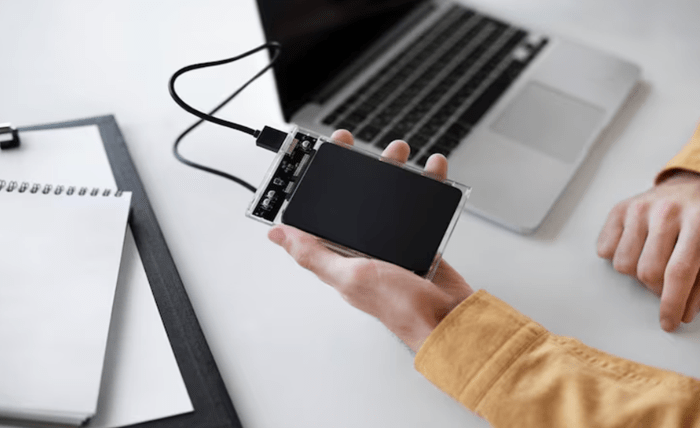
Finding the right ssd for iphone can transform how you store, manage, and transfer your files, especially as mobile content continues to grow in size and complexity. A portable SSD offers fast performance, reliable storage, and the convenience of taking your data anywhere without relying on cloud services. In this article, we’ll explore the best portable SSDs for iPhone users in 2025, helping you choose the perfect device to keep your files secure, accessible, and ready for any task.
What to Look for in an SSD for iPhone
When choosing an SSD for your iPhone, focus on four key aspects:
- Compatibility
Ensure the SSD is compatible with your iPhone model.
- iPhone 15 and newer: Use USB-C connections.
- Older iPhones: May require a Lightning-to-USB adapter.
The SSD should use a file system that your iPhone can read, such as exFAT, APFS, or HFS+. Some drives also come with apps or built-in software that make it easier to manage files and use the SSD with iOS.
- Speed (Performance)
Fast read and write speeds are important if you work with large files, 4K or 8K videos, or high-quality photos. Choose SSDs with USB 3.2 Gen 2 or USB 4.0 connections, because they transfer files much faster than older USB types. High-speed SSDs save you time when moving files, backing up your iPhone, or editing videos, making your work quicker and easier.
- Durability
If you take your SSD with you while traveling, commuting, or working outside, it should be tough and reliable. Choose SSDs that are shockproof, water-resistant, and dustproof. Rugged designs help protect your data from drops, spills, and rough conditions, so you don’t have to worry about losing important files.
- Storage Capacity
Choose an SSD that has enough space for all your files and backups. For most people 1TB–2TB is enough. If you work with large files, 4K or 8K videos, or store lots of photos and videos, a bigger SSD is better. Extra storage helps you avoid running out of space and may save you from upgrading too soon. Some SSDs also come with expandable storage or apps to make it easier to manage and organize your files.
Choose an SSD that fits your iPhone, whether for backups, media storage, or high-speed video work.
Top Portable SSDs for iPhone Users in 2025
If you want more storage on your iPhone, external SSDs are a great option. They let you back up files, move media between devices, and even handle high-speed tasks like video editing. Here’s a list of top SSDs that work well with iPhones:
Top 1: ADATA SE920
The ADATA SE920 is a high-speed portable SSD with USB4 speeds up to 40Gbps. It works with the iPhone 15 series, Windows, macOS, Linux, Android, and gaming consoles. You can use it with many devices. Compact and portable, it’s ideal for 4K video editing, large media files, and professional workflows.
Top 2: SanDisk iXpand Flash SSD
The SanDisk iXpand is an easy way to expand your iPhone storage. It has Lightning and USB-C connectors, works without adapters, and is plug-and-play for fast file transfers. Small and portable, it’s great for quick backups, moving photos or videos, and some versions include an app for automatic backups to keep your data safe.
Top 3: Samsung T9 Portable SSD
The Samsung T9 is a fast and reliable portable SSD with read/write speeds up to 2000MB/s. It’s IP65-rated for dust and water protection, works with the iPhone 15 series and other devices, and is compact and lightweight for easy portability. Ideal for professionals handling large media files, it makes transferring, storing, and editing big files quick and convenient.
Top 4: Crucial X10 Pro
The Crucial X10 Pro is a portable and reliable SSD with speeds up to 1050MB/s. It works with the iPhone 15 series, Windows, macOS, and Android devices, making it versatile for everyday storage and travel. Compact and easy to carry, it’s ideal for backups, file storage, and moderate media tasks.
Top 5: Kingston XS2000
The Kingston XS2000 is a compact, high-speed SSD with read/write speeds up to 2000MB/s. It works with the iPhone 15 series, PCs, and gaming consoles, making it versatile for multiple devices. Small and portable, it’s perfect for backups, storing games, or carrying work files on the go.
Tips for Choosing the Right SSD for Your iPhone
- Check Compatibility – Ensure the SSD works with your iPhone model and iOS version. Newer iPhones use USB-C, while older models may need a Lightning to USB adapter.
- Consider Storage Needs – Think about how much space you need. For backing up your iPhone or storing lots of photos and videos, an SSD with 1TB to 2TB is usually a good starting point.
- Evaluate Speed – Faster SSDs make transferring large files, editing videos, and managing media much easier. Look for drives with USB 3.2, USB 4, or Thunderbolt support if you often work with big files.
- Assess Durability – If you carry your SSD while traveling, working outdoors, or in busy environments, choose a drive that is shockproof, water-resistant, and dustproof. This helps protect your data from drops, spills, and rough conditions.
- Extra Considerations – Some SSDs come with automatic backup apps, password protection, or hardware encryption. These features keep your files safe and easy to manage.
By following these tips, you can choose an SSD that perfectly fits your iPhone, whether you need it for simple backups, storing photos, or high-speed media work.
How to Use an SSD with Your iPhone
Using an external SSD with your iPhone is a simple and practical way to expand storage, back up files, and manage media. Follow these steps to get started:
Step 1: Connect the SSD
- iPhone 15 and newer (USB-C) – Plug the SSD’s USB-C cable directly into your iPhone.
- Older iPhones (Lightning port) – Use a Lightning to USB 3 Camera Adapter to connect the SSD.
Tip: Some SSDs need more power than your iPhone can provide. In that case, use a powered USB hub for reliable operation.
Step 2: Access Your Files
- Open the Files app on your iPhone.
- Tap Browse at the bottom of the screen.
- Under Locations, select your connected SSD.
- You can now view, copy, move, or delete files.
- For photos and videos, you can also use the Photos app to import them directly from the SSD.
Step 3: Manage Password-Protected SSDs
If your SSD is encrypted:
- Open the Files app and tap the SSD under Locations.
- Enter the password when prompted.
- Once unlocked, you can manage your files normally.
By following these steps, you can easily use an external SSD with your iPhone to store, back up, and manage all your files.